
Build a clinic appointment booking app with AI
We typed one paragraph into GenVibe, the way a clinic owner would. Seven minutes later patients could pick a reason for the visit, a doctor or the first one free, and an open time, and the front desk had a page with the day’s appointments. It used 18.9 credits, about $1.89 at the smallest credit pack, with no follow-up messages.
Build this puts the prompt in GenVibe for you to edit. Nothing is sent until you press send.
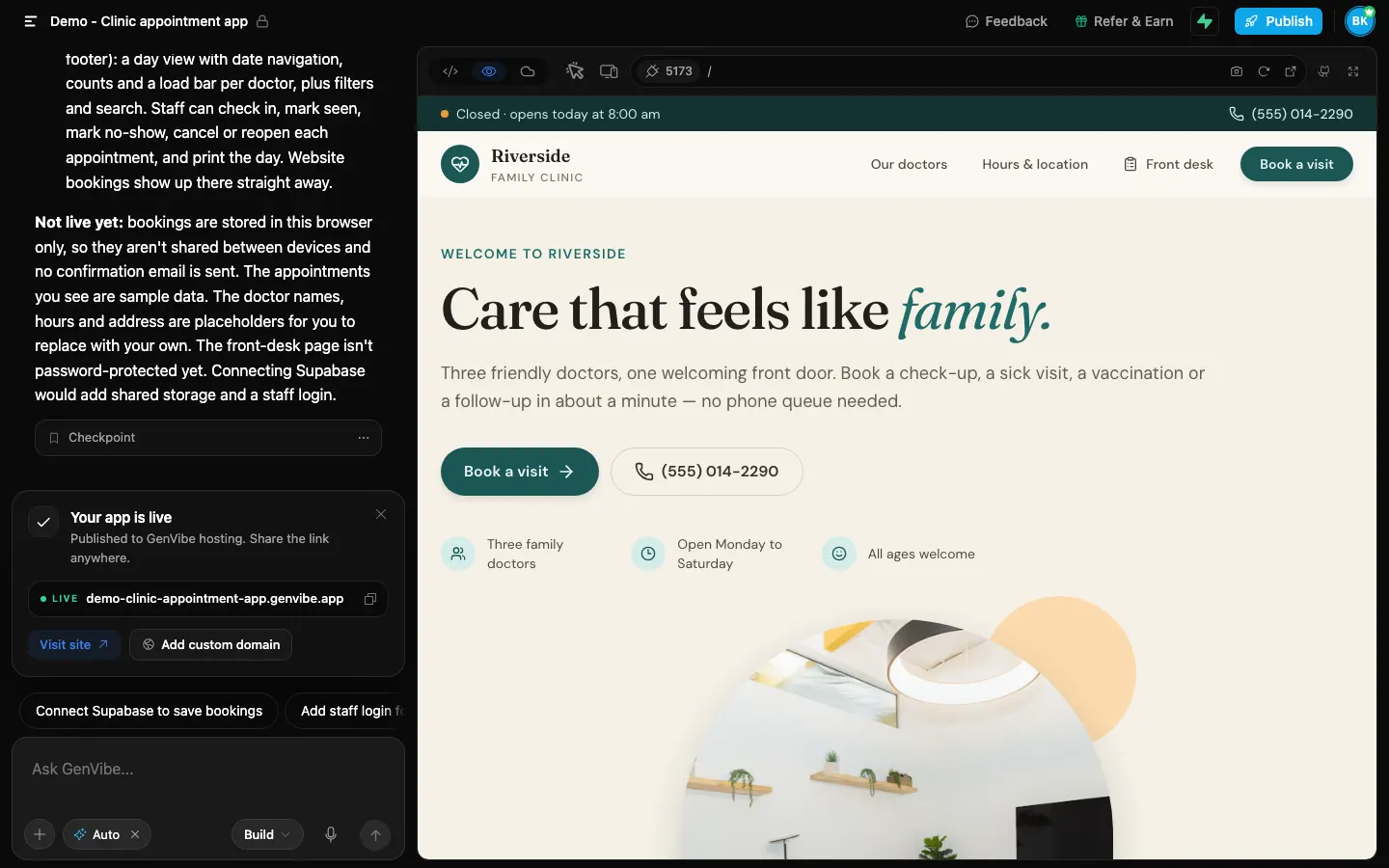
- First preview
- 5 min 29 s
- Finished build
- 6 min 48 s
- Credits used
- 18.9 credits
- Model
- Claude Sonnet 5.5
The prompt we typed
Written the way a shop owner would write it: no technical words. Change the names, prices and details to yours.
I run a small family clinic called Riverside Family Clinic with three doctors. I want patients to book appointments online: choose the reason for the visit (check-up, feeling sick, vaccination, follow-up), choose a doctor or the first one available, pick a date and an open time, and give their name, phone, email and a short note. Show our opening hours, address and phone number too. I also need a simple page for the front desk with the day's appointments.
What GenVibe built
One message, no follow-ups. Everything below is the first build, as the AI made it.
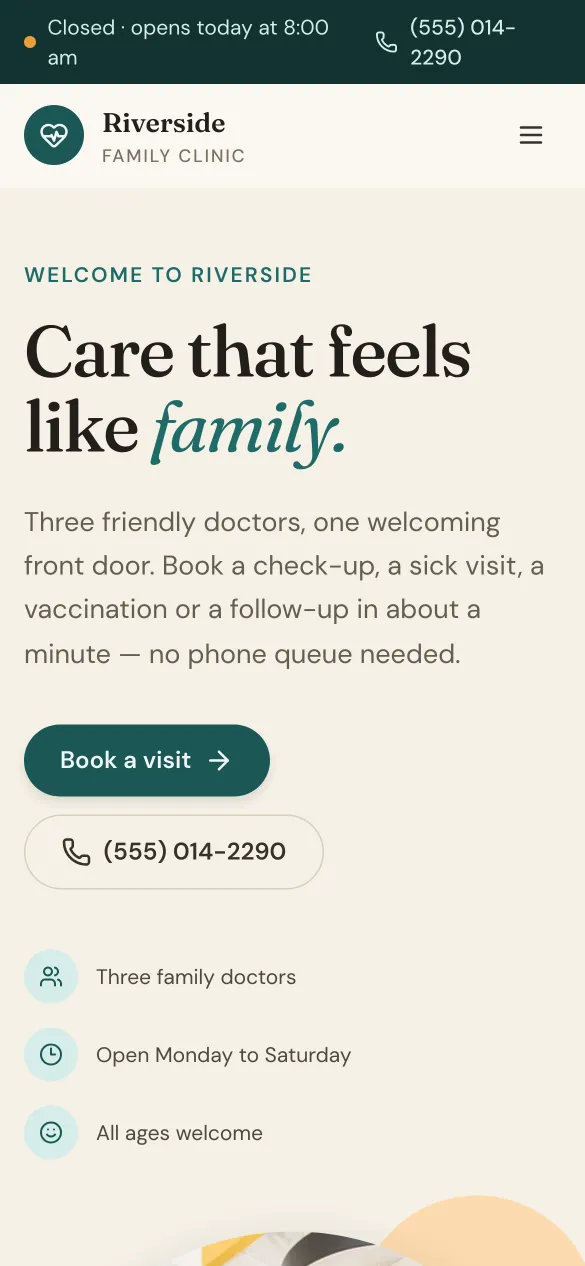
- A home page with the next free appointment, the three doctors with a “Book” button each, opening hours with today marked, the address with a directions link and a click-to-call phone number.
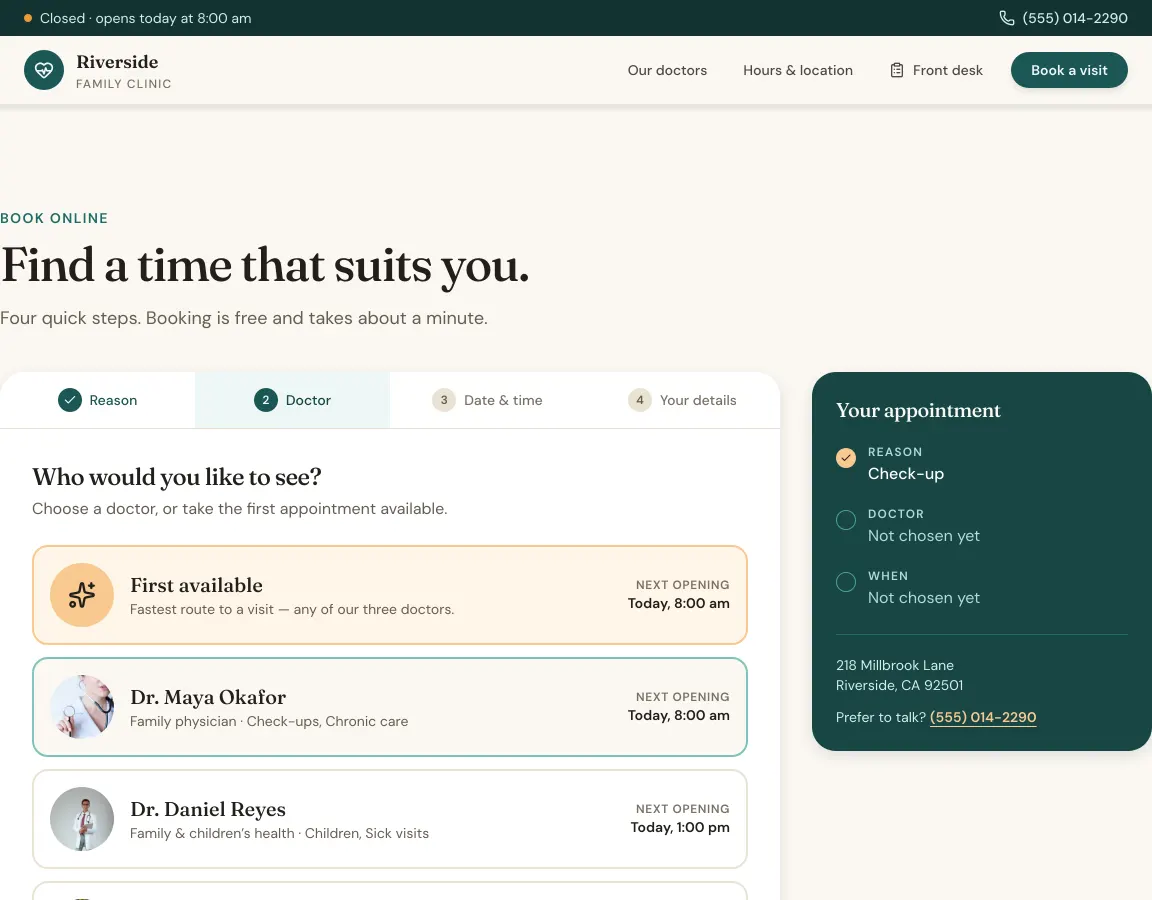
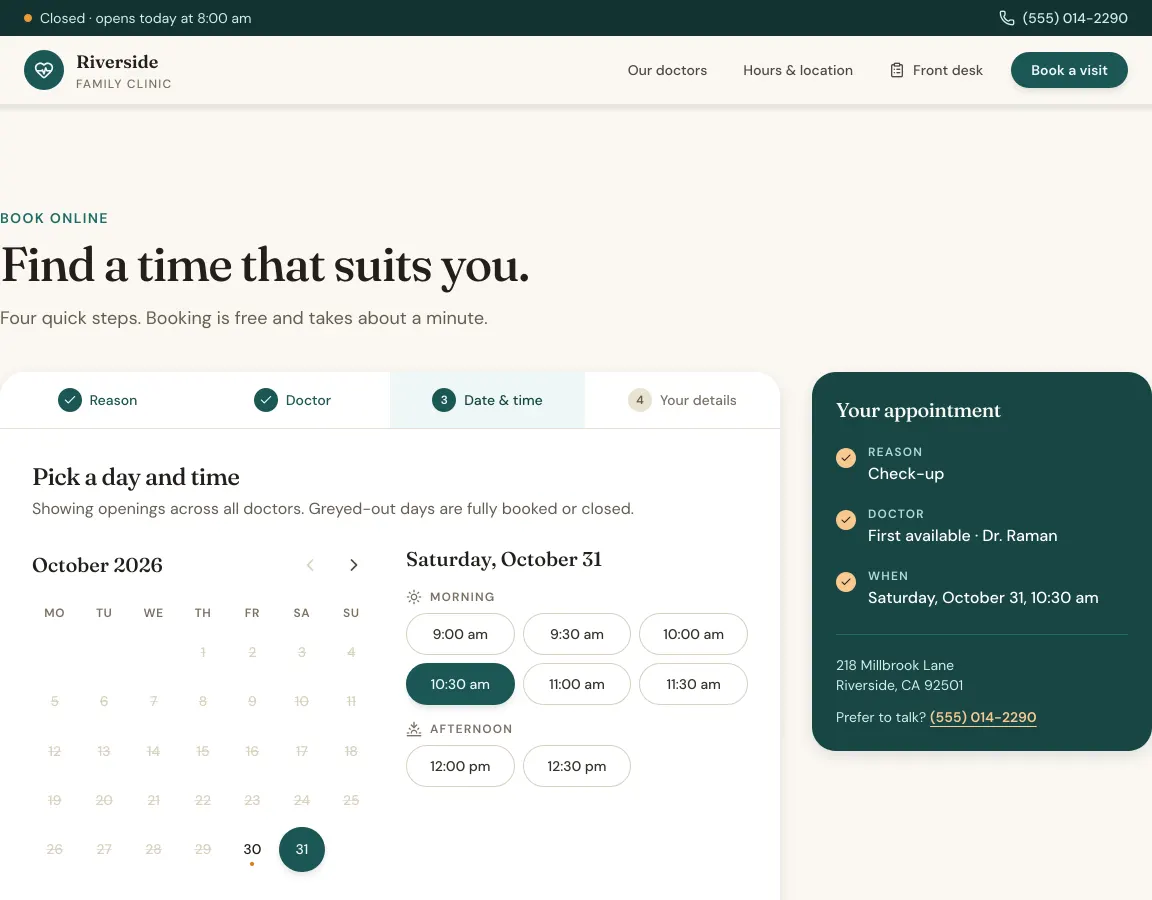
- Booking in four steps: reason for the visit, doctor (or “First available”), date and time, then name, phone, email and a note. A summary card follows along.
- Open times per doctor: each works their own days and hours, with a weekday lunch break. Taken and past times are hidden.
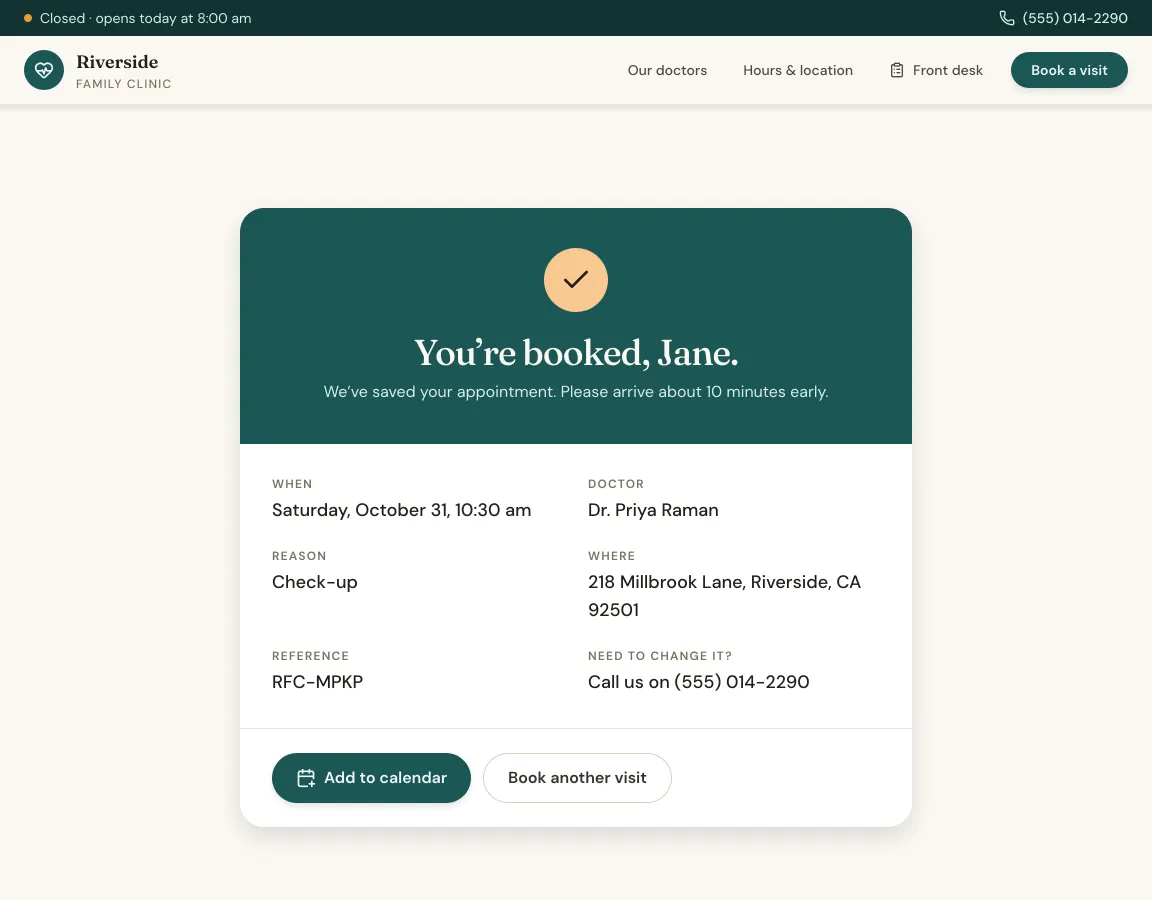
- A confirmation with a reference code and an “Add to calendar” button.
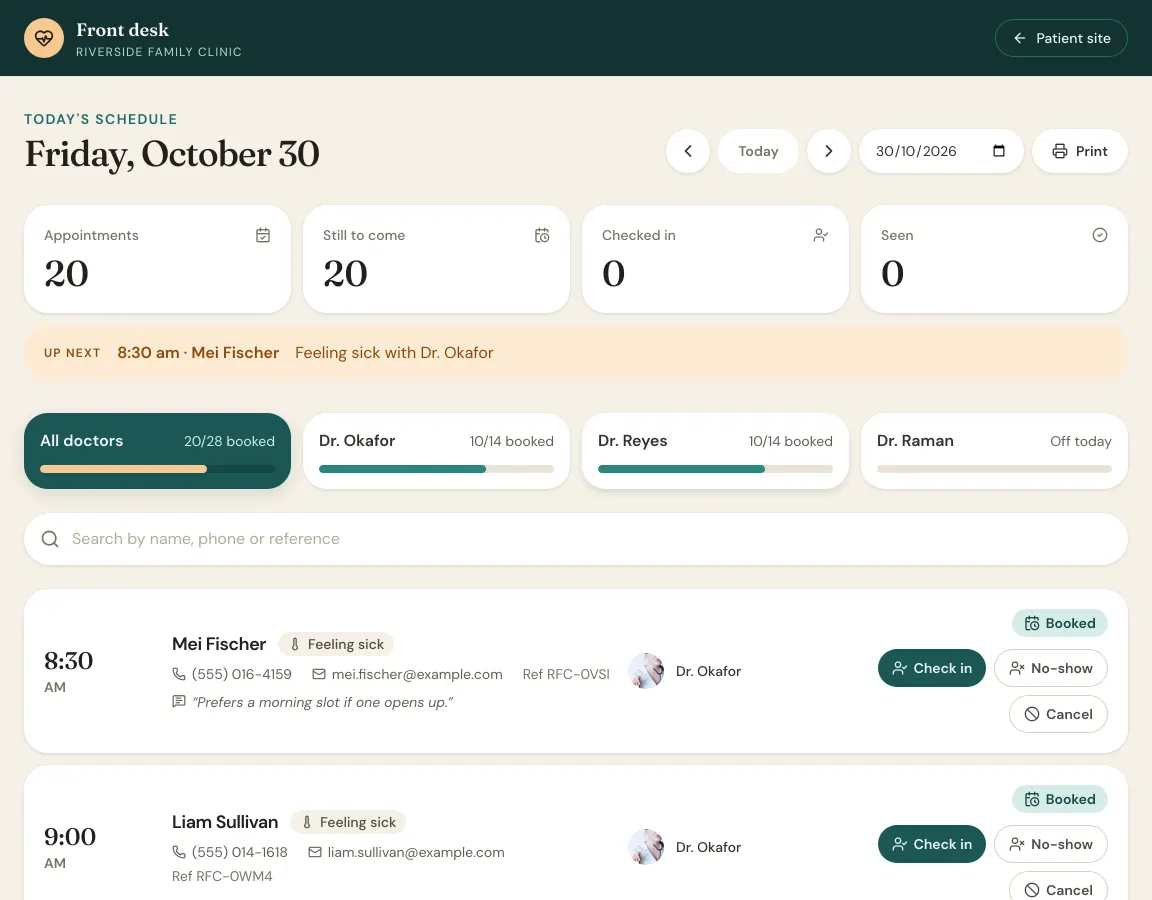
- A front desk page at /#/front-desk: the day’s appointments with counts per doctor, search, check in, mark seen or no-show, cancel, and print the day.
How long it took and what it cost
| Time to the first preview | 5 min 29 s |
|---|---|
| Time to the finished build | 6 min 48 s |
| Credits used | 18.9 credits |
| In money, with the smallest credit pack | $1.89 ($5 for 50 credits) |
| In money, on the cheapest plan | $2.27 ($12 a month for 100 credits) |
| Model | Claude Sonnet 5.5, picked by Auto |
Measured on October 29, 2026, from pressing send until the AI finished, on a paid account where Auto picked Claude Sonnet 5.5. The same prompt won't give the same app twice: the AI writes new code each time, and on a free account Auto may pick a different model, so the minutes and credits change from run to run. This build fits inside the 20 free credits every new account gets once, with no card. See pricing.
What is sample data, and how to make it real
The first build works on its own, with sample data, so you can click through it right away. These are the parts to switch on before real customers use it.
| Part | In the demo | To make it real |
|---|---|---|
| Appointments | Saved in the browser of the device that books them, so the front desk doesn’t see a patient’s booking. | Press Connect Supabase in the project and ask the AI to save appointments there. Every booking then reaches the front desk page. |
| Front desk page | Open to anyone who knows the address. It starts with sample appointments. | Ask the AI for a staff login with Supabase sign-in, and clear the sample appointments. |
| Doctors, hours, address | Made up by the AI, with stock photos and a 555 phone number. | Tell the AI your doctors, their working days, your hours and your address. |
| Confirmations | Shown on screen with a calendar file. No email is sent. | Connect Resend under Customize → Connectors and ask the AI to email each confirmation to the patient. |
How to build your own clinic appointment app
- 1
Open GenVibe on the Web App tab
Go to genvibe.pro and choose Web App above the message box.
- 2
Describe your business
Paste the prompt from this page and change the names, services and prices to your own. Plain words work best.
- 3
Watch it build
Press send. The AI plans the app, writes the code and shows it in a live preview. Ours took 7 minutes.
- 4
Change anything by chatting
Ask for changes in the chat, or click a part of the preview to point at it. Each change uses a few credits.
- 5
Publish it
Press Publish, then Publish to GenVibe. The app goes live on a free genvibe.app address you can share; a custom domain needs a paid plan.
Good next messages
Send these one at a time after the first build. Each one changes the app in place.
- Our doctors are (names, working days and hours). Replace the sample doctors.
- Save appointments in Supabase and add a staff login to the front desk page.
- Email patients a confirmation when they book.
- Add a page in Spanish too.
Publish it
Press Publish at the top of the project, then Publish to GenVibe. In under a minute the app is live on a free genvibe.app address on every plan, like our demo. Free accounts show a small "Made with GenVibe" badge.
On a paid plan you can use your own domain instead, without the badge. You can also push the code to your own GitHub, or deploy it to your own Netlify account.
Questions
Can I build a doctor appointment app without coding?
Yes. You describe your clinic in plain words and GenVibe’s AI writes the app. Our demo came from one paragraph, and we typed no code.
Is it safe for patient information?
Not as it stands: the demo keeps appointments in the browser and the front desk page has no login. Before real patients book, save appointments in Supabase with a staff login, and check the privacy rules for health information where you work before you collect more than a name, phone number and reason for the visit.
Does it stop two patients booking the same time?
In the demo, a taken time disappears on the device that booked it, because appointments are saved in that browser. Once appointments are saved in Supabase, everyone sees the same open times.
Can it work for a dental or physio practice?
Yes. Change the reasons for the visit, the staff and the hours in the prompt. The booking steps stay the same.
Can patients get reminders?
Not in this first build. With Resend connected under Customize → Connectors, ask the AI to email a confirmation when a patient books.
How much did this cost?
This build used 18.9 credits, about $1.89 at the smallest credit pack ($5 for 50 credits). It fits inside the 20 free credits every new account gets once, with no card. Plans start at $12 a month for 100 credits, and publishing to a genvibe.app address is included on every plan.
More real builds
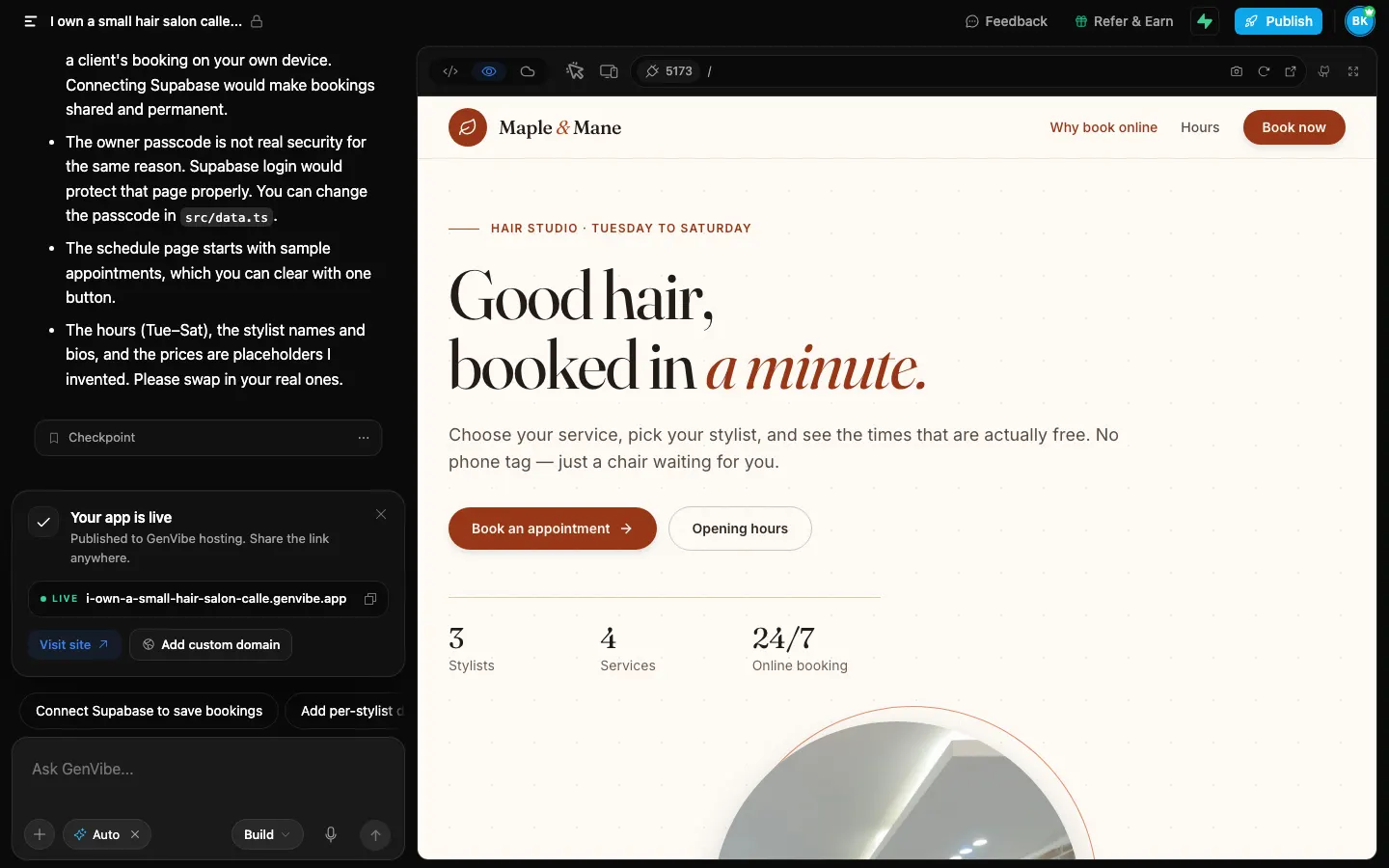
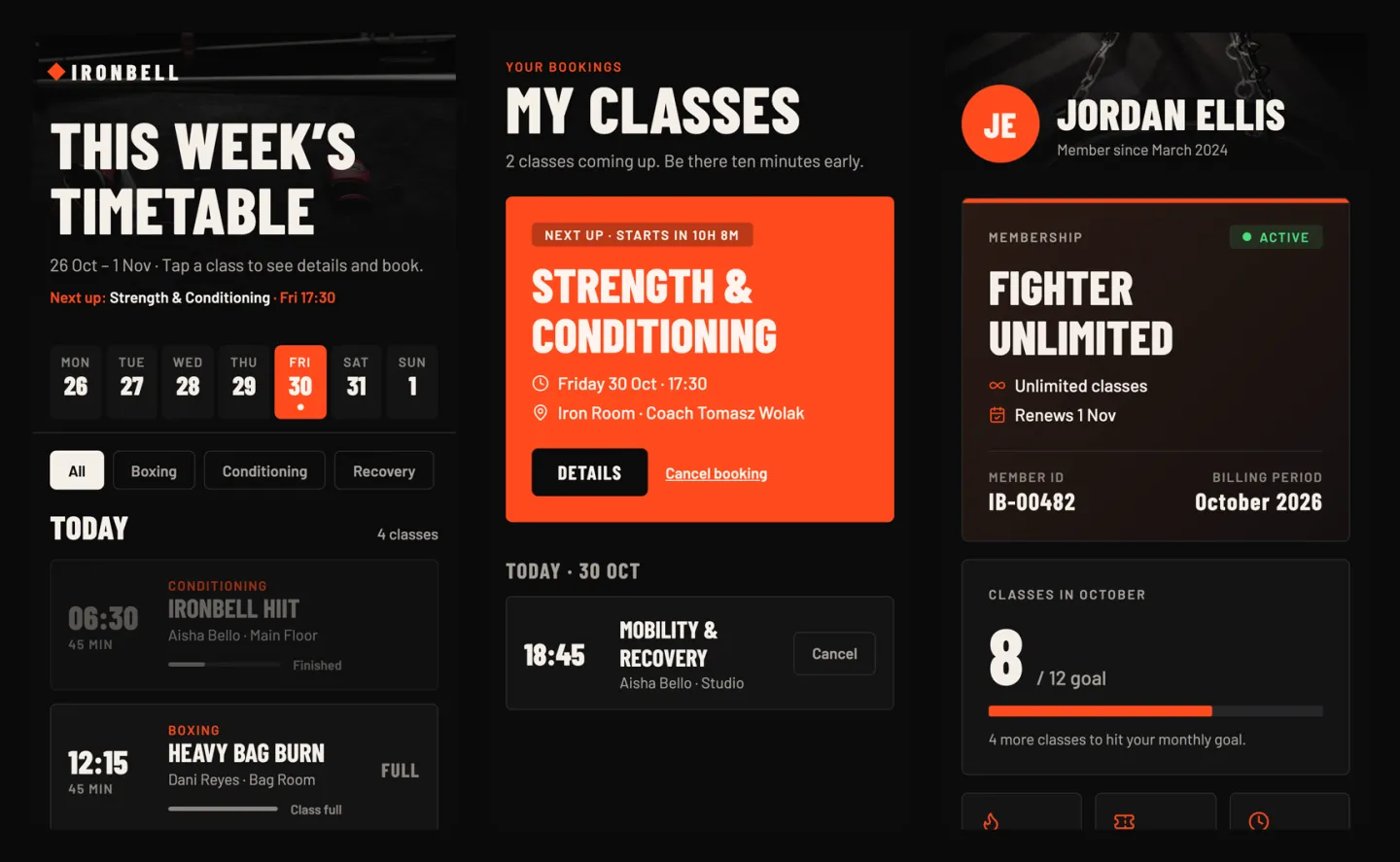
Start from a template instead
Templates open in about a minute and use no credits.
Keep reading
Make it yours
Start with this prompt, change the details to your business, and press send. New accounts get 20 free credits once, with no card.